Independent educational guide. Use only authorized providers; player software does not supply channels or subscriptions.
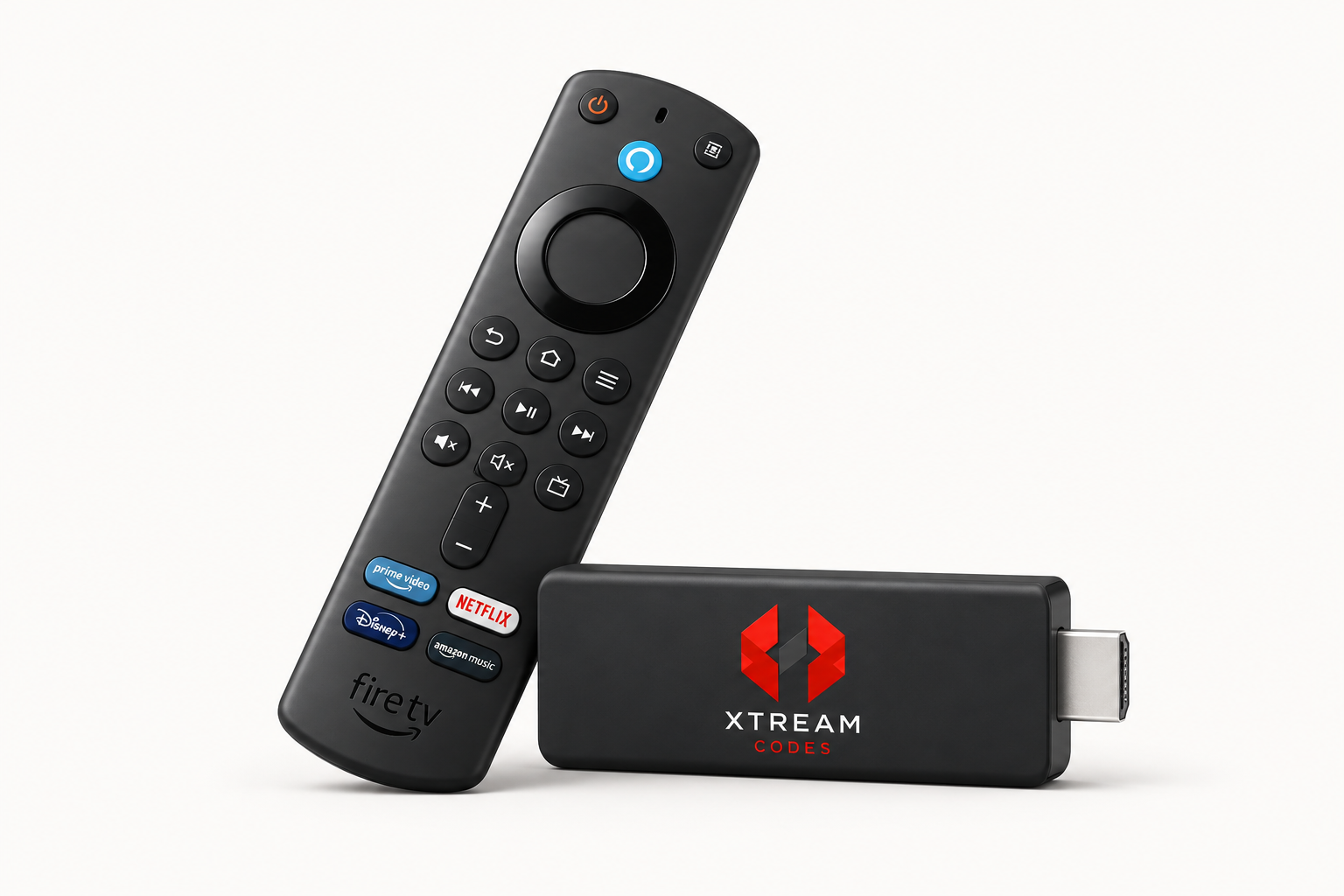
Fire TV Stick setup is straightforward when you use software from a trusted source and have valid provider details ready. App screens and supported features can change, so follow the current Amazon and app-publisher guidance for your device. This article describes a general, security-conscious workflow.
Prepare the Fire TV Stick
Connect the device to a reliable network, install available system updates, and confirm that you can open the Amazon Appstore. Check free storage before adding another player. If the interface is sluggish, restart once and close unused apps before making bigger changes.
Choose a player by checking its official store listing, publisher, supported login formats, privacy policy, device requirements, and pricing. Availability can vary by region and Fire OS version; do not rely on an old tutorial as proof an app is currently supported.
Install from a trusted source
Whenever possible, install through the Amazon Appstore. If a verified publisher documents another method, confirm the exact instructions and domain using its official support pages. Avoid modified APKs, unknown short links, and download codes pasted into comments.
Sideloading can increase security risk and may not be supported. Do not disable device protections or install unverified files because a page promises free channels. The player itself is separate from any provider that supplies media.
Enter your provider login
Open the player and select its supported provider or Xtream login. Enter the server address, username, and password exactly as supplied by an authorized provider. Sample credentials shown in articles are illustrative only; they are not working accounts and should never be used as another person’s login.
If your provider supplies an M3U link rather than individual fields, choose the matching login option. Submit once and allow the first catalog sync to finish. A large playlist or older device may need a little time to load.
Improve everyday playback
Place the stick where it receives a strong Wi-Fi signal and keep it ventilated. Compare the connection with another device in the same room; if supported, try Ethernet or another Wi-Fi band. Stop large downloads temporarily when diagnosing network congestion.
Use favorites and category filters to make remote navigation easier. Avoid refreshing repeatedly while a sync is running. If one stream fails but others work, report that specific item and the time to the provider rather than changing every network setting.
Fix common Fire TV problems
For failed sign-in, check the fields once, then ask the provider to confirm account status and the server address. For app crashes, check for an official update and clear the cache if appropriate. A weak connection can cause buffering, while provider downtime can affect a working device.
Clearing storage or reinstalling may remove playlists, favorites, and settings. Before resetting, confirm you still have the original login details and know how to restore them. Never share credentials in a public forum or with a person promising to unlock your player.
Make Fire TV navigation and storage manageable
Fire TV devices have limited local storage compared with a computer. Keep the operating system and the player updated, remove apps you no longer use, and leave enough free space for normal updates. If the player feels slow, restart the device and check available storage before deleting its data; clearing data may remove playlists, favorites, and preferences.
Use a simple home-screen layout and label any playlist with a neutral name. If the remote makes entering long credentials difficult, use only a trusted input method supported by Amazon or the verified player publisher. Avoid unknown keyboard apps and do not save account details in a shared public profile.
For a stable connection, place the device where it has a strong Wi-Fi signal and avoid blocking it behind metal or inside a closed cabinet. A supported Ethernet adapter can help diagnose wireless instability. Test one change at a time; a stronger signal will not fix an account that has expired or a source stream that is offline.
Review installation and account safety
Prefer apps available through the Fire TV app store and verify the developer name. Sideloading instructions found on blogs may refer to older menus or packages that have since changed. Installing an APK from an unknown source can expose the device to malware or collect credentials. Do not enable broad installation permissions unless you understand the risk and have verified the publisher’s official distribution channel.
Keep your Amazon account password separate from the playlist login. A player should not need your Amazon password simply to add provider details. If an app asks for unrelated credentials, close it and verify the app listing. Check subscription and activation fees independently: an app fee does not necessarily pay for media access.
Before lending or selling the Fire TV, remove saved playlists and sign out of personal accounts using the device maker’s recommended reset process. If the screen is lost or stolen, contact the provider to revoke access. These steps are especially important because a TV device may remain signed in for long periods without active use.
Check Fire TV storage and remote-control workflow
Before installing a player, check free storage and install available Fire TV system updates through the device’s settings. Low storage can interfere with updates and app performance. If you use voice input or a phone-based remote, enable only the official device feature or a trusted app from the verified publisher; avoid granting broad permissions to an unknown keyboard or sideload utility.
Entering a long server address with a remote is error-prone. Use the exact details your provider supplied, review the address and each field before saving, and give the first playlist sync time to complete. A neutral playlist name helps distinguish accounts without revealing the username. If available, an officially supported wired adapter can also help compare a weak Wi-Fi connection.
Avoid risky sideloading and preserve your setup
Fire TV menus and distribution policies change over time. Prefer the official app store and verify the developer before installation. An old guide that asks you to download an APK from a file-hosting page, disable security features, or grant unrestricted installation rights may be unsafe or no longer accurate. If the player is not available for your model, check official compatibility information before choosing another device.
Before clearing app data, understand that it may erase playlists, favorites, and preferences. Keep legitimate provider details in secure storage, not in screenshots or a shared note. When you lend or sell the device, remove saved playlists and sign out of personal accounts using the manufacturer’s supported process. If the device is lost, ask the provider to revoke its access.
Improve Fire TV Playback and Remote Navigation
A smooth Fire TV setup begins with device maintenance, a dependable network, and a player obtained from an official store. Keep the Fire TV operating system and player updated, restart the device after updates, and close apps you are no longer using if performance is slow. Storage warnings, a crowded home screen, or an outdated app can cause sluggish menus even when the network is fine.
Test network quality without guessing
Place the Fire TV where it receives a strong Wi-Fi signal; television cabinets and nearby electronics can weaken reception. If possible, compare Wi-Fi with a supported Ethernet adapter. Pause large downloads on other household devices during a short playback test, but do not change DNS or router security settings as a first step. Test the same authorized stream at a different time and compare whether one item or every item is affected. This helps distinguish a device issue from congestion or a provider-side outage.
Make remote use easier
Use the player’s favorites and category controls to reduce repeated browsing, and learn the back, information, and playback buttons before changing advanced settings. If the app closes unexpectedly, note the error and app version, then restart the Fire TV and check for an official update. Clear app data only when you understand that saved accounts and preferences may be removed; make sure you have the provider’s current details first. Avoid unofficial APKs and never send a full login in a support screenshot. Fire TV hardware and player software are separate from the subscription or content source.
Frequently Asked Questions
Does a Fire TV Stick include IPTV channels?
No. It is a streaming device. A compatible player and a separate authorized content provider are needed.
Can every Fire TV model use Xtream login?
Only if a compatible player supports that model and software version. Confirm requirements in the current official listing.
Do I need to sideload a player?
Not necessarily. Prefer the Amazon Appstore when the desired compatible player is available there.
Why does playback buffer?
Possible causes include Wi-Fi, device performance, provider capacity, or an individual stream. Test systematically and contact the provider if it persists.
Responsible use: XtreamCodes.co offers educational setup information, not TV subscriptions or streams. Follow local law and confirm a provider’s content rights.