
Independent educational guide. Use only authorized providers; player software does not supply channels or subscriptions.
IPTV Smarters is a player interface on supported devices; the app alone does not provide a television subscription. If you have a provider account you are authorized to use and a current app version that supports its login format, these steps can help you enter it carefully.
Verify the current app
Search the official app store for the app name and confirm the publisher. Similar names may refer to different products, and availability changes by device and country. Review the listing, compatibility notes, permissions, privacy information, and in-app pricing before installing.
If a provider recommends a particular version, verify the download through that app publisher’s official documentation. Avoid modified builds that ask you to disable security or provide unrelated account credentials. A media player should not need your email password to load a playlist.
Choose the matching sign-in method
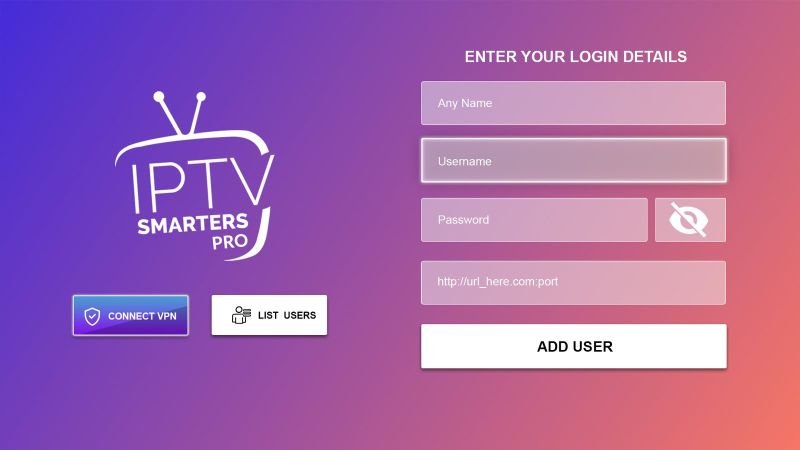
Open the app and select the login type that matches what your provider gave you. An Xtream-style form commonly asks for the server address, username, and password. If you received an M3U link instead, use a playlist option rather than pasting that long URL into the server field.
Preserve the exact server address, including any port and protocol specified by your provider. Remove accidental leading or trailing spaces, and submit once. Do not guess the endpoint from an example in a tutorial.
Complete the first sync
Keep the app open while it retrieves the account catalog. Large lists may take longer, especially on a slow connection or older device. Check only categories that your package includes and use the guide refresh if listings are missing or old.
If sign-in succeeds but some categories are absent, check filters and parental controls, then ask the provider what your plan contains. If the entire catalog fails, verify the account and endpoint with the provider before reinstalling.
Organize a private, usable profile
Choose a neutral playlist name that does not reveal your password. Organize favorites and select a playback setting that works on your device. If the device is shared, use a device-level lock and consider whether saving login details is appropriate.
Keep credentials in a trusted password manager. Remove old profiles when you stop using the provider or hand over the device. Avoid screenshots or support posts that show a username, server URL, device identifier, or expiry details.
Handle common errors
An invalid login can result from a typo, wrong endpoint, inactive account, or provider-side issue. A crash may respond to an official app update or clearing cache. If one channel fails but others work, record the item and time and report it to the provider.
Reinstallation can erase playlists and settings. Before trying it, make sure you still have the original login details. Keep the operating system and app updated through trusted channels, and remove unofficial copies that request excessive permissions.
Understand profiles, categories, and guide data
After the initial sync, take a moment to learn how the current version organizes live, on-demand, and series categories. Exact labels differ between app builds, so use the help information in the verified app rather than assuming every tutorial shows the same screen. Favorites and profile settings are usually local conveniences; they do not change the content included in the provider account.
If the player offers profiles, use separate profiles only for people who are authorized to access the account. A profile is not necessarily a secure boundary, so do not treat it as a substitute for a device lock or careful credential handling. Check parental controls and privacy options on the device itself when children use the screen.
Guide listings can be a separate data feed and may not cover every item. Confirm the device’s time zone, perform a single refresh, and check whether the provider says EPG is included. Avoid repeatedly deleting and re-adding the whole playlist when only the schedule is missing; that can erase favorites without solving a provider-side feed issue.
Recognize app-version and compatibility changes
App names and editions can change, and similarly named products may be published by different developers. Verify the official store entry, publisher, current release notes, privacy policy, and supported operating systems before installing. If the app is not listed for your device or country, do not rely on an old tutorial to bypass the store; its instructions may be outdated and unsafe.
Menus, login methods, and premium features may differ by version. Match the workflow to the app currently installed and the connection format provided for your account. If an update changes behavior, note the app version and the date of the update before contacting support. This gives the developer useful context without sharing your login.
When replacing a device, check both the player’s activation terms and the provider’s device allowance. Some charges relate only to the player; others are separate account fees. Confirm renewal and cancellation conditions for each before accepting a payment prompt.
Prepare the setup before you sign in
Before entering a playlist, check the app’s official store listing, publisher, supported device, latest release notes, privacy information, and license terms. Compare the exact app version with the instructions you are following; older screenshots may show different menus or features. Confirm the provider account is active and that its stated device and connection limits fit your intended use.
Keep the original account message in a secure place and enter the server address and credentials only in the verified player. Check for accidental spaces and select the connection format the provider supports. After saving, wait for the first sync to finish instead of submitting repeatedly. If the app reports an error, note its wording and contact the correct support team without exposing the password or complete playlist URL.
Maintain privacy, reliability, and account control
Player settings and favorites can often be reset when an app is updated, removed, or moved to a replacement device. Before clearing data, check whether the app provides a backup or export and make sure you still have the legitimate setup information stored securely. Do not put credentials in a playlist label or an unprotected family note. Remove accounts from devices you no longer control.
For playback problems, compare more than one item and check whether other internet apps work on the same device. A single unavailable stream may indicate a source issue; an app crash points more toward the player; failures across devices may involve the account or provider. Change one setting at a time, keep a note of the original value, and avoid unofficial “repair” downloads or services that ask to inspect your credentials.
Organize IPTV Smarters for Easier Everyday Use
Once an authorized account is connected, take a few minutes to set up the player around how your household watches. Interface labels can vary by app version, so use the current app help if a control has moved. Start with a playlist refresh, wait for loading to finish, and confirm that live categories, on-demand sections, and guide data appear only when your service supports them.
Build a useful, uncluttered library
- Use favorites for frequently watched items rather than repeatedly searching large lists.
- Keep categories visible only when they help navigation; hiding a category is a display choice, not a change to the provider’s service.
- Check subtitle, audio-track, and aspect-ratio options during playback, since availability depends on the stream.
- Refresh the program guide after confirming the device time zone; guide information can update separately from the playlist.
- Review parental controls and app-lock settings if the device is shared, and choose a PIN that is not your account password.
If the app shows an empty list, refresh once and check account status with the provider before removing and recreating the login. For buffering, compare another authorized stream and another device on the same network. Keep a brief note of the app version and error, but redact server URLs, usernames, and passwords when contacting support. IPTV Smarters is a player, not a channel provider; use content sources you are licensed or otherwise authorized to access.
Frequently Asked Questions
Does IPTV Smarters supply TV channels?
No. It is player software. Any subscription and programming come from a separate provider.
What fields do I enter for Xtream login?
Usually the server URL, username, and password issued by your provider; follow the labels in your app.
Why is the guide missing after login?
Guide data may need refreshing, arrive separately, or not be included with the account. Ask the provider if it stays unavailable.
Is every app with a similar Smarters name official?
No. Verify the publisher and current app-store listing before installing.
Responsible use: XtreamCodes.co offers educational setup information, not TV subscriptions or streams. Follow local law and confirm a provider’s content rights.