Independent educational guide. Use only media sources you are authorized to access; the player does not supply a subscription or content.
A Samsung or LG television can be a convenient screen for a compatible media player, but app availability varies by model, region, and operating-system version. This guide walks through a cautious setup process and clarifies what the TV application does—and does not—provide.
Check your model and app availability
Open the official app store on the television and search for the player you intend to use. Verify the publisher, supported models, current reviews, permissions, pricing, and any trial terms. Store listings change over time, so an old guide cannot guarantee that a particular app is available for every television.
Check that your TV software is current and that there is enough free storage. If the app is not listed for your exact model or region, confirm compatibility with the manufacturer or app publisher. Avoid unknown firmware or installation files that promise to bypass the official store.
Get account details from an authorized source
Ask your provider whether it supports your chosen player and request the server address, username, password, and any specific connection instructions. Some apps use a device identifier or a playlist portal; treat any identifier as private and use only the app developer’s official activation process.
Read the app’s activation and renewal terms separately from the provider’s subscription terms. A one-time player fee does not necessarily include a channel package, and a provider subscription does not necessarily unlock a premium app. Verify both before paying.
Add and sync the playlist
Launch the player and find the supported option such as Add playlist, Provider login, or Xtream API. Enter each value into its corresponding field and preserve the address format exactly. If a playlist label is requested, use a neutral name that helps household members identify it without revealing a password.
Some TV apps manage playlists through a companion website. If so, follow the address shown within the official app, check for a secure connection, and confirm the device identifier before saving. Return to the television and use the reload or sync control to retrieve the playlist.
Organize channels and guide data
Allow the initial catalog to finish loading before navigating away. Open only the sections your provider says are included. Use favorites and category filters to make navigation easier with the remote, and refresh the guide data if the player provides a dedicated control.
If guide times are shifted, check the television’s time zone and the player’s guide offset. A missing guide does not necessarily mean that video login failed; guide information may be separate, delayed, or unavailable for a particular account.
Troubleshoot without risking your settings
If sign-in fails, carefully verify the fields and ask the provider whether the account and server are active. If one item is affected, report that item rather than resetting the whole TV. If the app crashes, first check for an official update and the television’s available storage.
Clearing storage or reinstalling may remove playlists and favorites. Before doing so, confirm that you have the original credentials and know how to restore the setup. When you sell, repair, or give away the TV, remove saved playlists and ask the provider to unlink any device registration.
Compare built-in TV apps with an external device
Some television models have a compatible player in their regional app store; others do not. Check the exact model year and operating system, because two TVs from the same brand can have different app availability. Install only from the manufacturer’s store and review the app publisher, support notes, privacy policy, and any activation charge before proceeding.
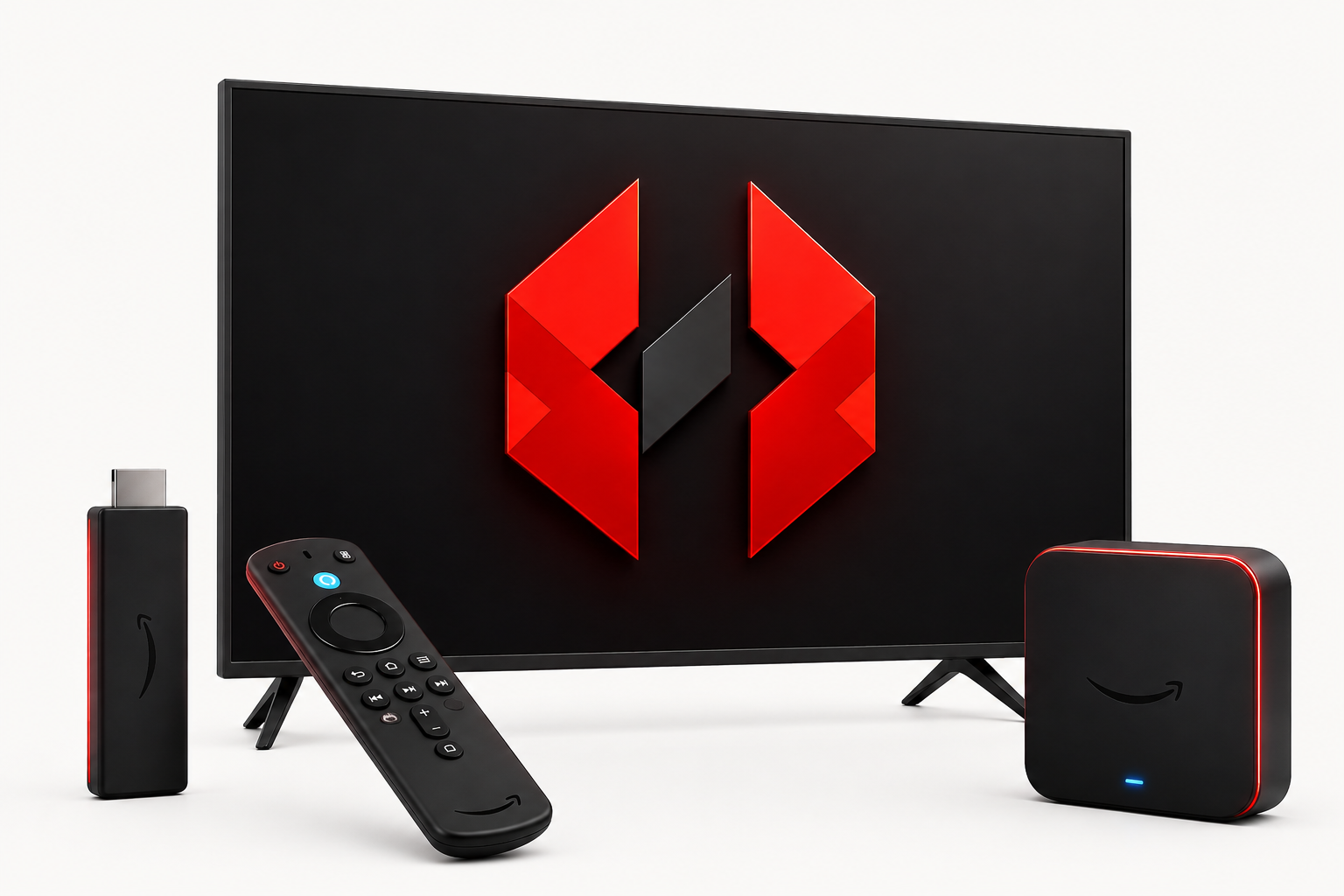
If a player is unavailable or updates are no longer provided, a supported streaming device may be a practical alternative. Compare the cost, remote-control experience, accessibility options, Wi-Fi support, and update history—not only the advertised channel count. Avoid instructions that require a hidden service menu or an unofficial firmware file, which can damage the TV or weaken its security.
Before purchasing anything, check the provider’s device limits and the player’s format support. Ask whether the account can be moved between devices and whether the old device must be removed first. A compatibility check up front can prevent paying for a device or app that cannot use the authorized playlist.
Keep the TV secure and easy to maintain
Use the TV’s normal software-update menu and leave automatic security updates enabled where available. Remove apps you no longer use, review permissions, and avoid saving a playlist on a television in a guest room or rental property. If multiple household members use the TV, agree on where credentials are stored so they are not written on a visible note.
Remote controls and TV keyboards make long passwords error-prone. If your provider offers a supported copy or QR workflow, verify that it is the official app before using it. Never photograph a code or device identifier and post it publicly; an activation identifier can be tied to your device even though it is not the account password.
When changing TVs, follow the provider’s documented transfer process and remove the old playlist after the new device is working. If the account stops loading after a firmware update, note the model and update date, then check official app support information before reinstalling. A measured approach protects favorites and avoids losing the only copy of your setup details.
Prepare the television before installing an app
Before installation, connect the television to the home network, confirm its date and time settings, and install available system updates from the manufacturer’s settings menu. Make a note of the complete model number and operating-system version: app-store availability can differ between model years, regions, and firmware. The exact model matters more than the TV brand name alone.
Use the manufacturer’s official app store and verify the publisher, privacy information, permissions, and current version. If a guide says an app should be available but it is missing from your store, do not install an unofficial package or enter a hidden service menu based on an unverified tutorial. Check the developer’s current compatibility notes or choose a supported external streaming device.
Make a TV setup easier to maintain
Keep the provider’s setup message in a secure location before signing in. TV remotes can make long addresses difficult to enter, so double-check every character and avoid repeatedly submitting guesses. If the player supports an official companion setup portal, verify its address from inside the current app or developer documentation before entering a device ID or playlist details.
After confirming the playlist works, record only non-sensitive maintenance notes such as the app version and the date it was set up. When an app or television updates, review whether settings moved before deleting the playlist. If you replace the TV, ask about device limits and transfer steps first, then remove the old saved login once the authorized new setup works.
Smart TV Compatibility Checklist Before Installation
Smart TVs do not all run the same operating system, and an app available on one model may not exist on another. Check the model number and software version in the television settings, then search the TV maker’s official app store for a compatible player. Confirm the developer name and supported login methods. Avoid sideloading files from unknown sources simply because a video recommends them.
Prepare the TV for a clean setup
- Install current television software updates and restart the TV before adding an app.
- Check that the TV’s date, time, and region are correct; inaccurate device settings can interfere with secure connections and guide schedules.
- Confirm whether the app supports a remote control and the provider’s exact playlist format.
- Use a stable Wi-Fi signal or Ethernet where available, and place the router with minimal obstruction.
- Keep the provider’s login details private and enter them only inside the intended app.
If the app store does not list the player for your model, use a supported external streaming device rather than assuming an unofficial installation will be reliable. After setup, test a few authorized streams and the guide. If only one category or item fails, record that detail; if the whole app fails, capture the device model, operating-system version, and app version for support. A compatible player organizes a connection but does not supply a service or grant rights to content.
Frequently Asked Questions
Can I use an external streaming device if the TV store lacks a player?
A supported external device may be an alternative if it connects to the TV and the app is available in its official store. Check compatibility, power, network, and the provider’s device terms first.
Do Samsung and LG TVs use the same apps?
No. Samsung and LG use different smart-TV platforms, and app availability differs by model, year, and region. Follow the store and setup instructions shown on your own television.
Why can’t I find a player in the TV app store?
The app may not support the television’s operating system, model year, or region, or it may have been removed. Confirm with the app publisher and TV manufacturer. Avoid installing unknown files or changing the TV’s firmware to force compatibility.
How do I find my Samsung or LG TV model and year?
Open the television’s Settings and look for Support, About This TV, or Device Information. The exact menu name varies by model. Check the manufacturer’s current support page using the full model code before assuming an app is compatible.
Can every Samsung or LG television install every player?
No. Compatibility depends on the exact TV model, software, country, and app-store listing. Check the store on your television.
Does the login itself provide channels?
No. It authenticates with a separate provider. The player is software and does not create or license programming.
Why might the app ask for a TV device ID?
Some apps use a device identifier to associate a playlist with an installation. Keep it private and follow the official app flow.
What if the player is unavailable in my app store?
Confirm compatibility with the publisher. Use a supported external device rather than installing unknown firmware or unofficial files.
Responsible use: XtreamCodes.co is an educational setup resource, not a broadcaster or subscription provider. Confirm the provider has the necessary rights and check local rules before streaming.
Check Your TV Model Before Setup
Record the full model number and software version from the TV’s About or Support menu. Search the manufacturer’s official support site for the app platform, store availability, and current firmware guidance. A product family name alone is not enough: models sold in different years or regions can have different app catalogs.
- Confirm the TV is connected to the internet and the date and time are correct.
- Open the manufacturer’s official app store and search for the exact player name.
- Check the publisher, compatibility notes, privacy information, and any in-app fee.
- Confirm your authorized provider supports the app and its login format.
- Install and update only through the TV’s official store.
- Enter account details privately and test playback before adjusting other settings.
If Your TV Does Not Support the App
Do not assume every television can install every player. Ask the app publisher or TV manufacturer whether your model is supported. If it is not, compare a compatible external device from an official store. Confirm that it supports the player and any display features you need, and check the provider’s device rules before signing in.
Never install firmware or app packages from an unknown website simply to bypass a store restriction. Unofficial software can compromise the TV, expose account details, or stop working after an update. Keep the television’s security updates current and remove a player before selling or giving away the TV.